View a Suffix
The part of the Claim Suffix-ID after the hyphen is referred to as the "suffix." A different suffix can be used to identify each party in the claim, and to separate different types of damage. For example, the first party to the claim may be assigned the "01" suffix, the second party assigned the "02" suffix, and so on. Bodily injuries and property damage could be assigned different suffixes.
The Claim Suffix view shows the items associated with each suffix, including rental information. Use the Suffix Details page to view:
-
Administrative details
-
An activity history for the suffix
-
Required actions for the suffix, such as assignments and photo capture tasks
How to
 View Suffix Details
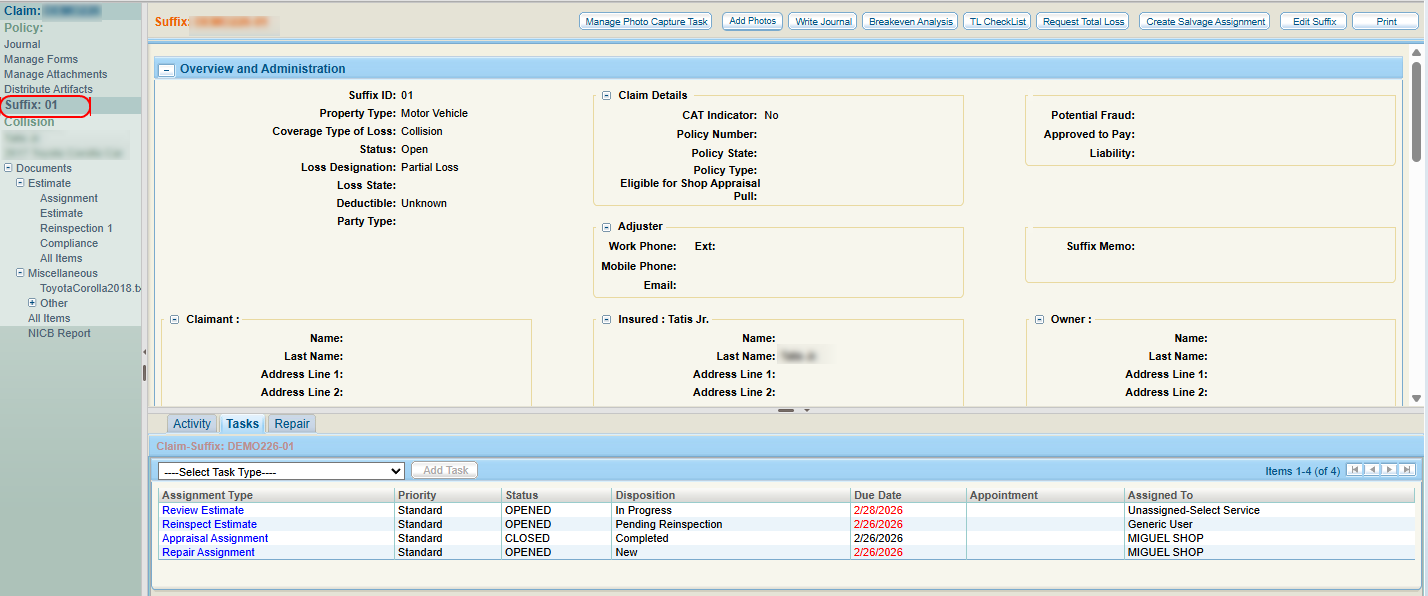
The Suffix Details page shows a summary of the claim's details as well as details about the vehicle.
-
Navigate to the desired claim and open it.
-
In the claim navigation pane, select the desired Suffix to open the suffix details page.
View the Suffix Activity Log Tab
- Navigate to the detail's page of the desired claim.
- In the claim navigation pane, select the Suffix Number.
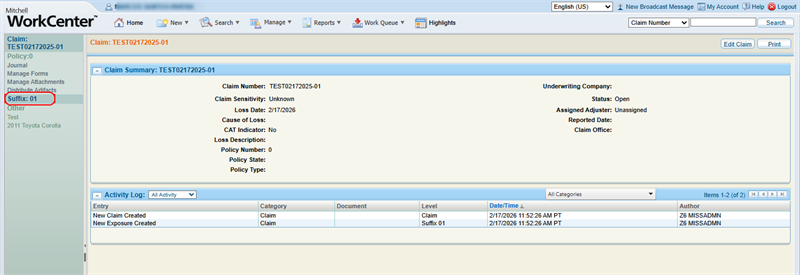
- Select the Activity tab.
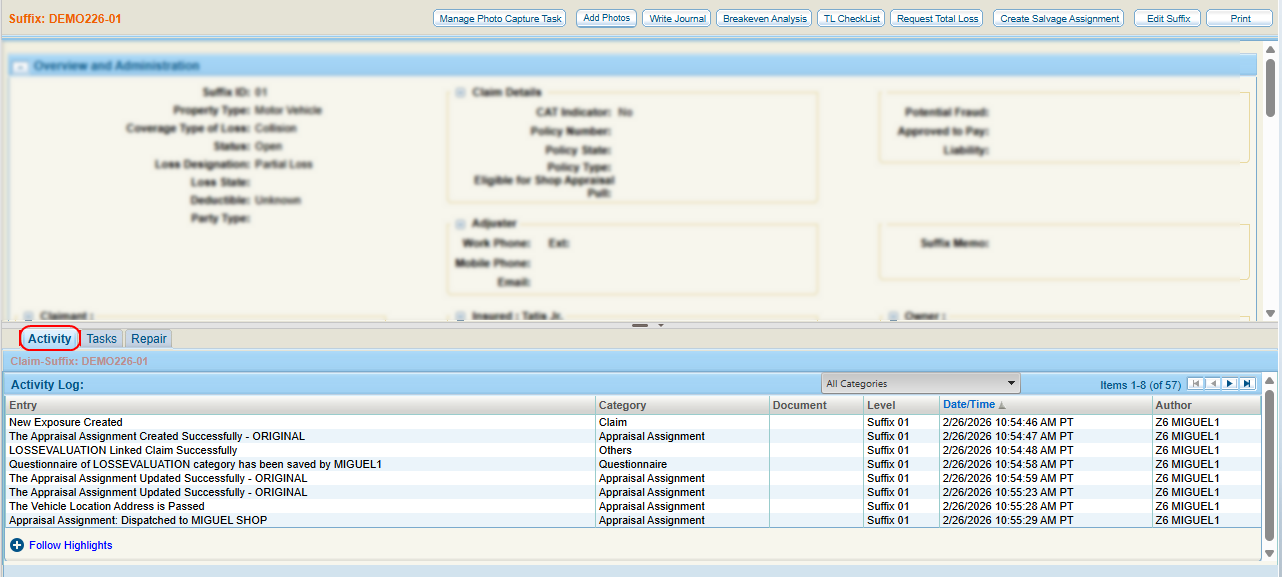
- View the suffix activity log.
- As needed, select column headings to sort the list and use the page navigation to view the desired event(s).
View Suffix Tasks Tab
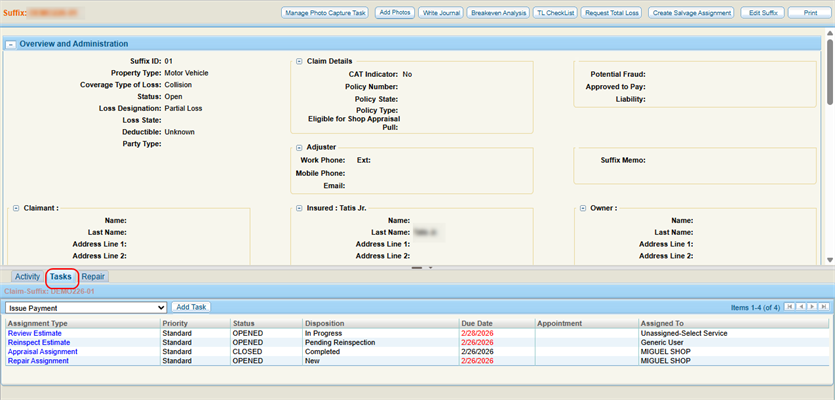
The Tasks tab shows a list of required actions for the suffix, such as assignments or photo capture tasks that have been created.
- Navigate to the detail's page of the desired claim.
- In the claim navigation pane, select the Suffix Number.
- Select the Tasks tab.
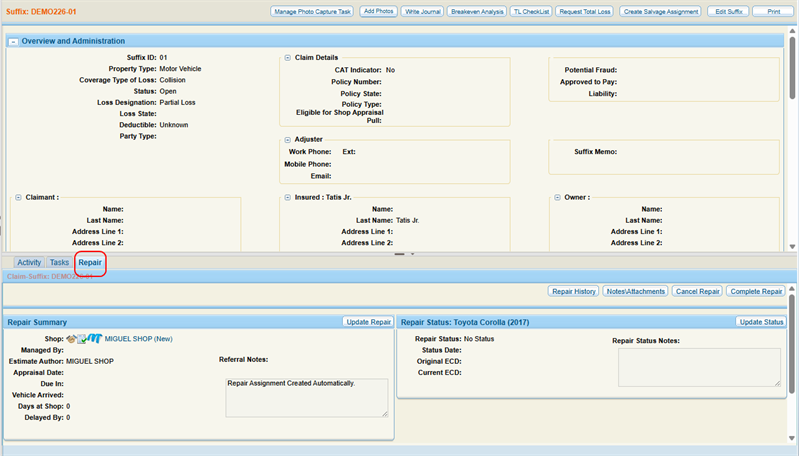
View Suffix Repair Tab
The Repairs tab in the Claim Suffix view shows the current repair status of the suffix.
- Navigate to the detail's page of the desired claim.
- In the claim navigation pane, select the Suffix Number.
- Select the Repair tab.
Reference
Suffix Page Components
| Name | Description |
|---|---|
| Manage Photo Capture Task | Opens the Manage Photo Capture Task window where you can choose Task Types, provide Recipient Information, and write a note to the recipient. |
| Add Photos |
Opens the Attach Files window where you can add and upload your photos. |
| Write Journal | Opens the Journal window in the context of the suffix you are in. You can view existing entries and create new entries as needed. |
| Breakeven Analysis | Opens the Breakeven Analysis page. Use the Breakeven Analysis page to determine the break-even point for repairable versus total loss valuations. You must be configured for WorkCenter Total Loss. |
| TL Checklist | Opens he Total Loss Checklist. Use the Total Loss Checklist to track the progress of key points in the total loss valuation process. You must be configured for WorkCenter Total Loss. |
| Request Total Loss | Opens the Total Loss Valuation form. You must be configured for WorkCenter Total Loss. |
| Edit Suffix | This feature may not be available to all users. See Edit a Suffix. |
| The claim details open in a print preview window showing how the page will look once printed. |
Overview and Administration Field Descriptions
| Name | Description |
|---|---|
| Property Type | Select the type of property involved in the claim-suffix. |
| Type of Loss | Select the type of loss (e.g., collision, fire, etc.) from the list. |
| Suffix Status | The status of the suffix. |
| Loss Designation |
Select the designation of the loss (e.g., Total Loss or Partial) from the list. |
| Loss State | Select the state where the loss occurred. |
| Deductible | Enter the deductible associated with the policy if known and select its status as Waved, Unknown, or Not Waived from the list. |
| Claimant, Insured, and Owner |
Each section contains the contact information for the various parties associated with the claim-suffix. |
| Potential Fraud/Approved to Pay | Select Yes or No from the list. |
| Liability | Enter any liability. |
Vehicle Field Descriptions
| Name | Description |
|---|---|
| VIN | If you have the Vehicle Identification Number (VIN), enter it in the spaces provided, and select Decode VIN. |
| Decode VIN | Select Decode VIN to decode the VIN and complete the vehicle description fields based on the Vehicle Identification Number. |
| VIN Not Available | Select this option if you do not have the Vehicle Identification Number. Then, complete the description fields in order. |
| Vehicle Type |
Select the type of vehicle from the list.
|
| Year | Select the year the vehicle was manufactured. |
| Make | Select the manufacturer of the vehicle. |
| Model | Select the model of the vehicle. |
| Sub-Model | Select the sub-model of the vehicle. |
| Body Style | Select the body style of the vehicle. |
| Engine | Select the type of engine used in the vehicle. |
| Transmission | Select the type of transmission used in the vehicle. |
| Drive Train | Select the drive train used in the vehicle. |
| Fuel Type | Select the vehicle's fuel type. |
| License Plate |
Enter the vehicle license plate number, the state/province where the vehicle is registered. |
| Exp. | Select the registration tag expiration month and year from the lists. |
| Exterior Color |
Select the color of the vehicle from the list. |
| Mileage (in miles) | Enter the odometer reading or select True Mileage Unknown. |
| Drivable | Select Yes or No from the list. |
| Prior Damage | Select Yes or No from the list. |
| Primary POI | Select the Primary Point Of Impact from the list. |
| Secondary POI(s) | Select the Secondary Point(s) Of Impact from the list if any. To select more than one Secondary POI from the list, press the Ctrl key on your computer keyboard while clicking the item. |
| Damage Description | Enter any notes that may explain the cause or details of the damage. |
| Location | The details of the vehicle's location including its name, address, and phone number. |
Suffix Activity Log Column Descriptions
| Name | Description |
|---|---|
| Entry | A description of the action taken on the claim. |
| Category | What category (Claim, Assignment, etc.) the action belongs to. |
| Document | Any documents that were added/changed during the action. |
| Level |
The level (the whole claim or a specific suffix) associated with the activity. |
| Date/Time | The date and time the activity occurred. |
| Author | The user who performed the action. |
Related topics
