Manage Attachments
Attach and delete files associated with the claim and suffix.
You can upload multiple files at one time. Each file can be up to 4 MB in size, with a total upload size of up to 100 MB. All existing file types can be uploaded.
How to
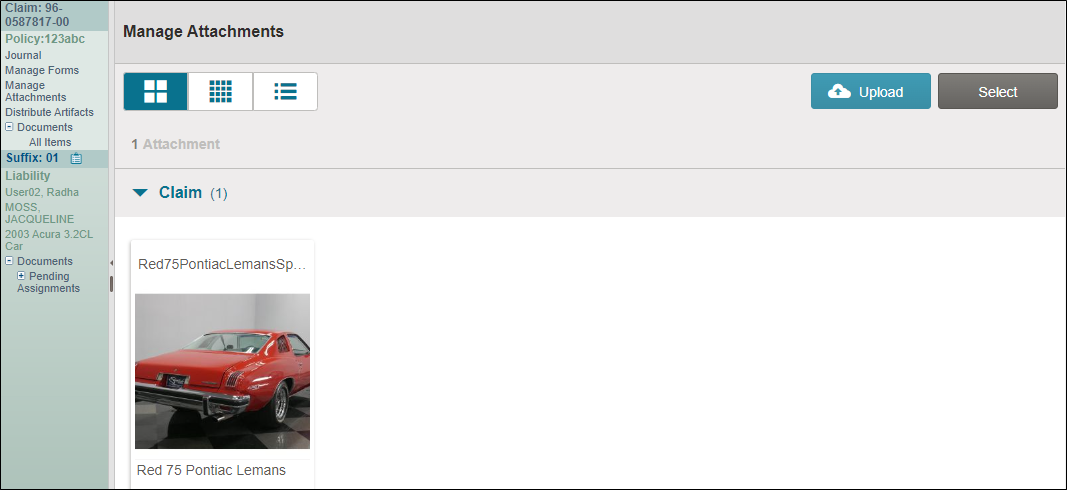
 View Files Attached to a Claim
- Navigate to the desired claim and open it.
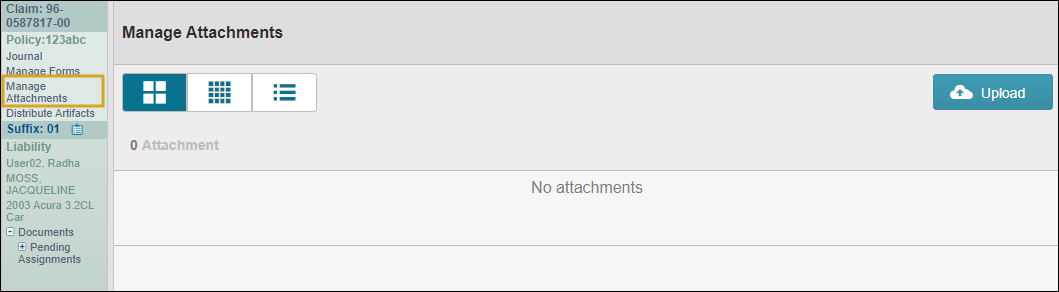
- In the claim navigation pane, select Manage Attachments.
-
If applicable, select the appropriate tab:
-
Select the specific Suffix tab to view files attached to a particular suffix.
-
Select the Claim tab to view files attached to the entire claim.
-
- Use the view controls to adjust how attachments are displayed.

Attach Files to a Claim
- Navigate to the desired claim and open it.
- In the claim navigation pane, select Manage Attachments.
-
If applicable, choose where to attach your files:
-
Select the specific Suffix tab to attach files to a particular suffix.
-
Select the Claim tab to attach files to the entire claim.
-
- Select Upload.
- Follow the directions from your browser to navigate to and select the desired file(s).
- Select Open.
-
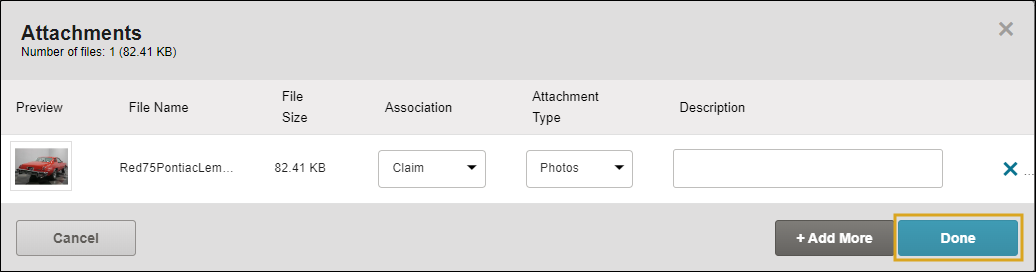
Optionally, select Attachment Group(s) from the list and add a Description to your file(s).
-
Select Add More to add more files, or select Done if you are done adding files.
Note: You can upload/delete up to 200 attachments at once when using the Manage Attachments page.
Delete File Attachments
- Navigate to the desired claim and open it.
- In the claim navigation pane, select Manage Attachments.
-
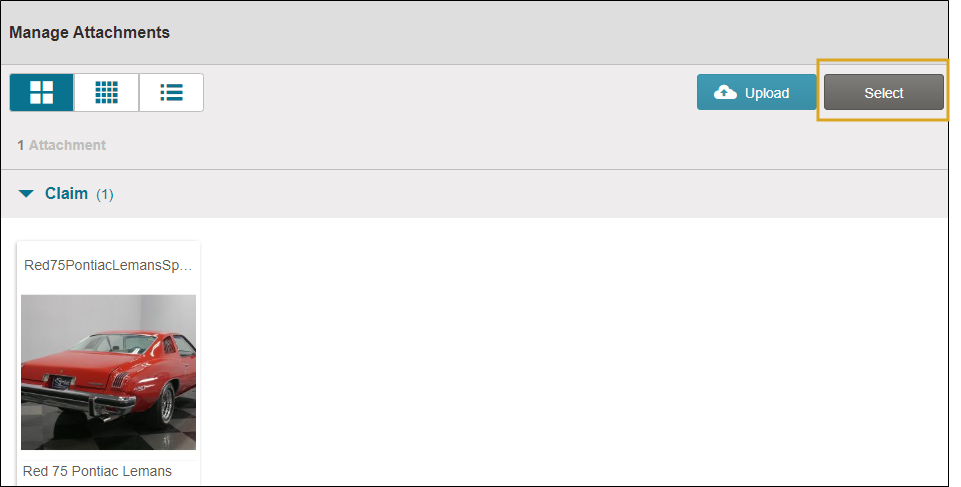
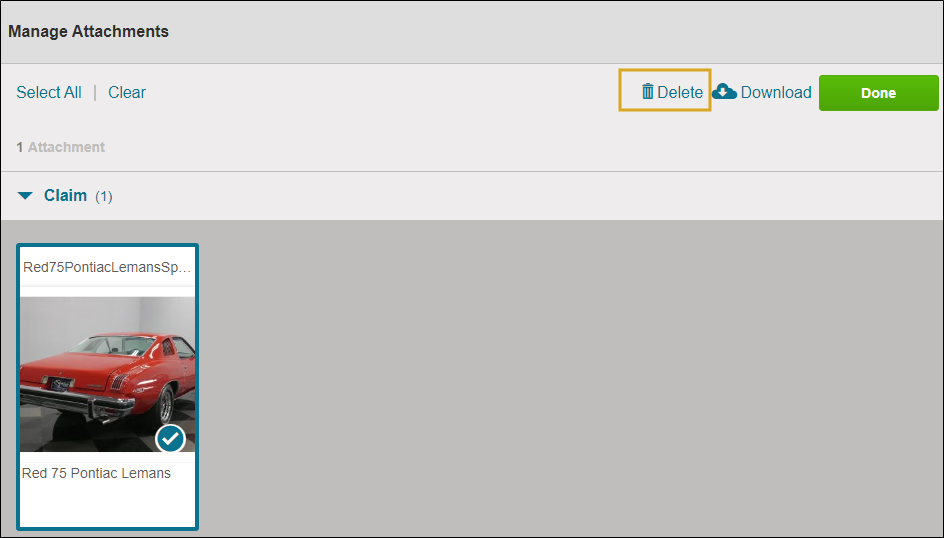
Click Select and then select the attachment(s) you want to remove.
-
Select Delete.
-
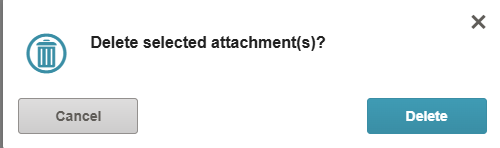
In the confirmation window, select Delete to delete the selected attachment(s).
Download File Attachments
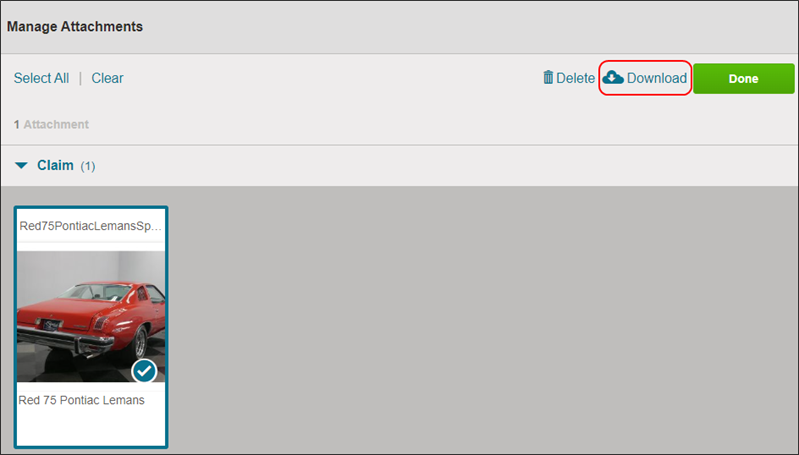
You can download file attachments to your computer.
 Add Photos to a Suffix from the Suffix Details Page
-
Navigate to the desired claim and open it.
-
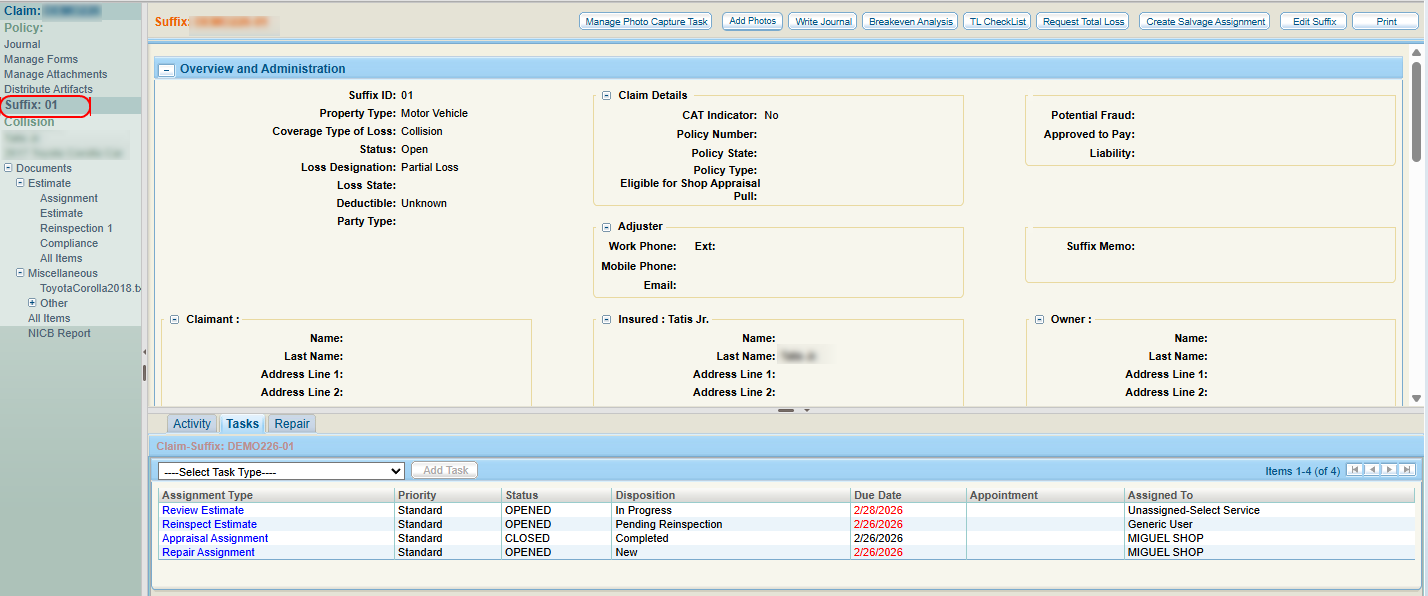
In the claim navigation pane, select the desired Suffix to open the suffix details page.
-
Select Add Photos.
-
Follow the directions from your browser to navigate to and select the desired file(s).
- Select Open.
-
Optionally, select Attachment Group(s) from the list and add a Description to your file(s).
-
Select Add More to add more files, or select Done if you are done adding files.
Reference
View Components
| Icon | Description |
|---|---|

|
Display the image/attachment preview, the attachment name, and the attachment description in a grid format. |

|
Display the only the image/attachment preview in a grid format. |

|
View a list of the files attached to the claim. |
Related topics
