Work with Suffix Tasks
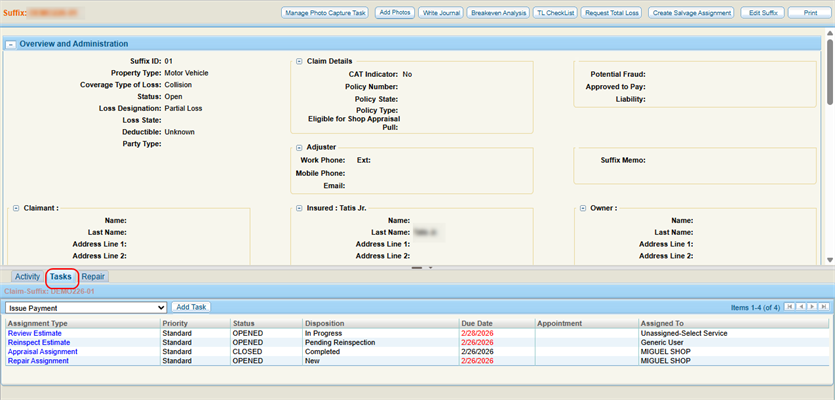
The Tasks tab on the suffix page shows a list of required actions for the suffix. You can open, add, and assign tasks.
How to
 View Suffix Tasks Tab
- Navigate to the detail's page of the desired claim.
- In the claim navigation pane, select the Suffix Number.
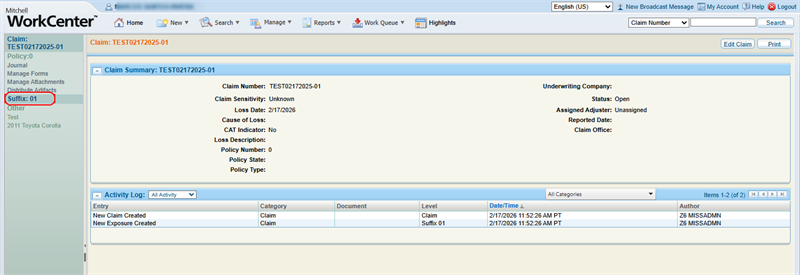
- Select the Tasks tab.
-
Select the desired task to open it.

Note: Tasks displayed in all capital letters were automatically generated by the system in response to another user's request or action. Tasks shown in standard case (with both uppercase and lowercase letters) were manually added directly to the suffix by a user.
Add a Task
-
Navigate to the suffix details page and select the Tasks tab.
-
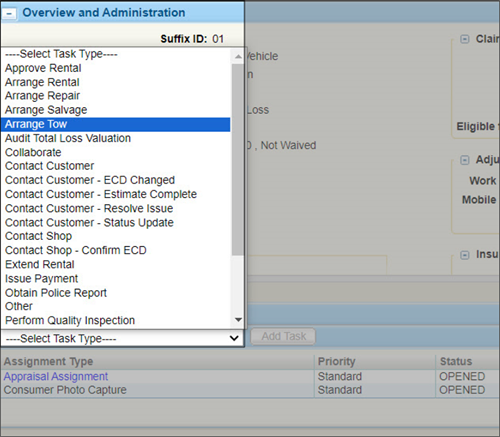
Select a Task Type from the list.
-
Select Add Task.
-
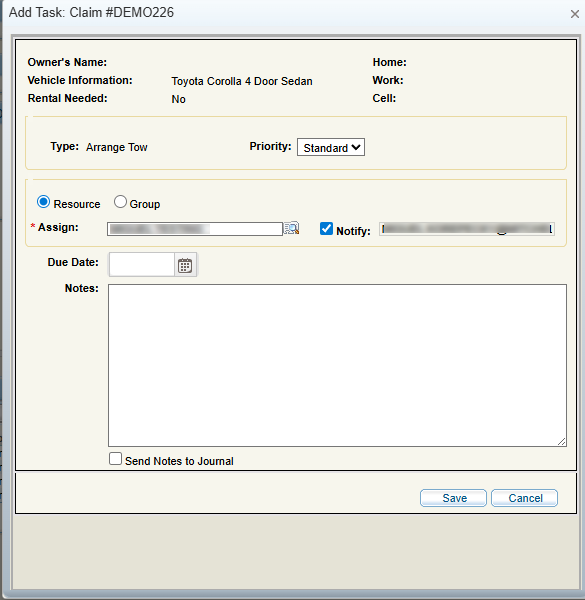
In the Add Task window, enter the appropriate information.
-
Select Save.
Reference
Add Task Window Components
| Name | Description |
|---|---|
| Type | A list of standard tasks. Select Other if the task you want to add is not listed. |
| Priority | A list of task priority levels. This information is not required. |
| Resource/Group | Select Resource to assign the task to an individual resource, or select Group to assign the task to a group. |
| Assign | Enter the user name of the resource you want to assign the task to or select  to find and select the user from the Resource Lookup window. to find and select the user from the Resource Lookup window. |
| Due Date | Enter the due date or select  to choose the date from the calendar. to choose the date from the calendar. |
| Notes | Enter any notes about the task. |
| Send Notes to Journal | Select the checkbox to send the notes you have typed to the claim's journal. |
Related topics
