Create and Edit Dispatch Centers
Dispatch Centers are organizational groups for managing work assignments. You can create new groups and edit existing groups in WorkCenter.
How to
 Create a Dispatch Center
-
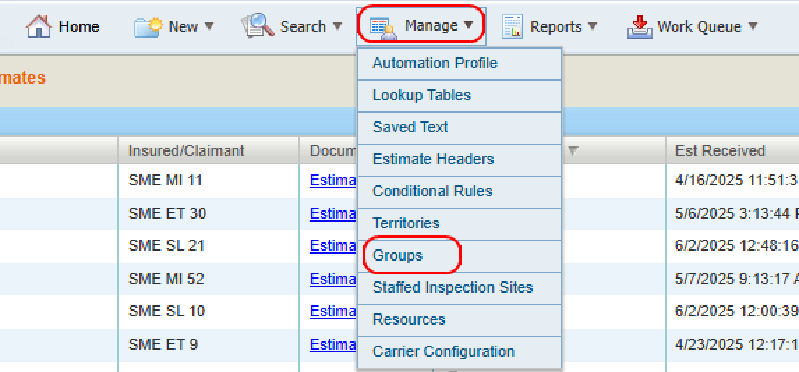
On the Manage menu in the navigation bar, select Groups.
-
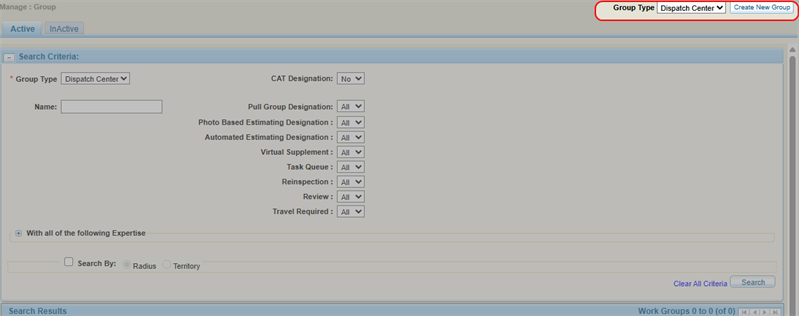
Select Dispatch Center from the list.
-
Select Create New Group.
-
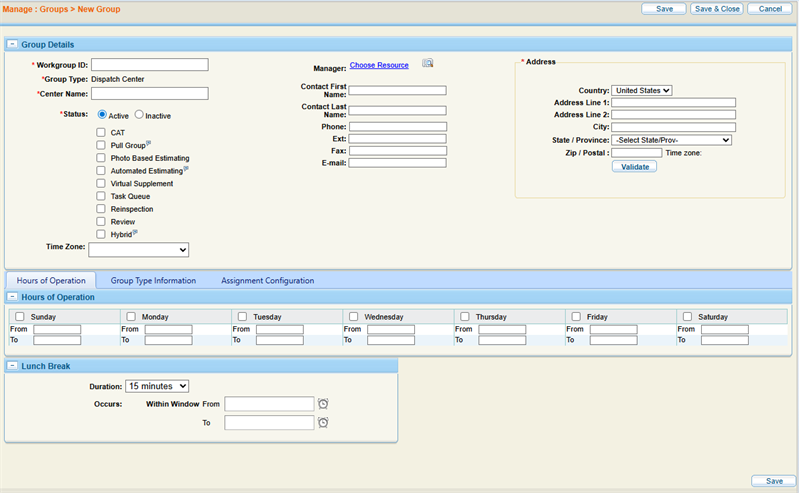
Complete the required information in the Group Details section.
-
Enter any additional information as desired in the Hours of Operation, Relationships, Events, Group Type Information, and Assignment Configuration tabs.
-
Select Save to save your information and continue working, or select Save & Close to save and finish.
Search for Existing Dispatch Centers
-
On the Manage menu in the navigation bar, select Groups.
-
Select the Active or InActive tab.
-
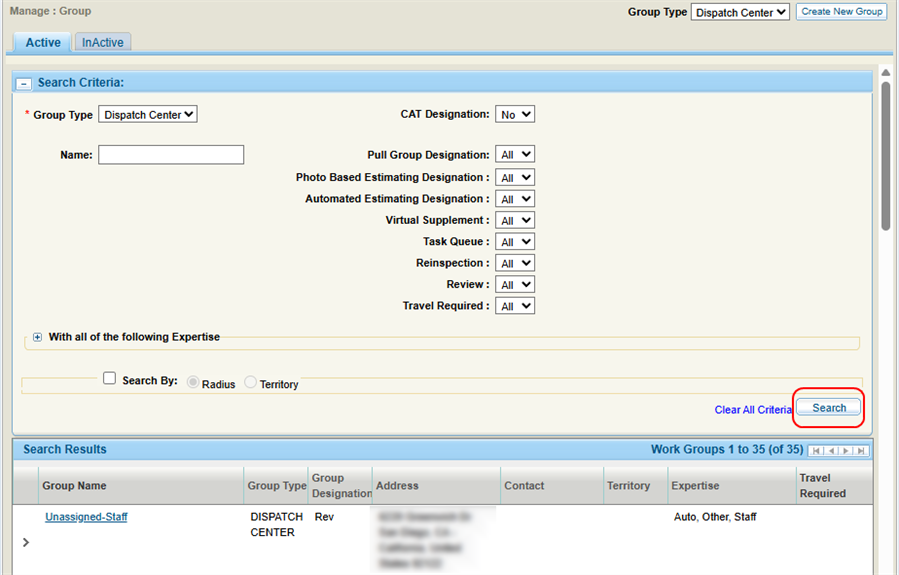
Enter the desired search criteria.
-
Select Search.
-
View the search results on the page.
Edit an Existing Dispatch Center
-
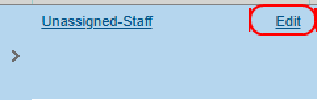
On the Search Results list, select Edit next to the desired group's name.
-
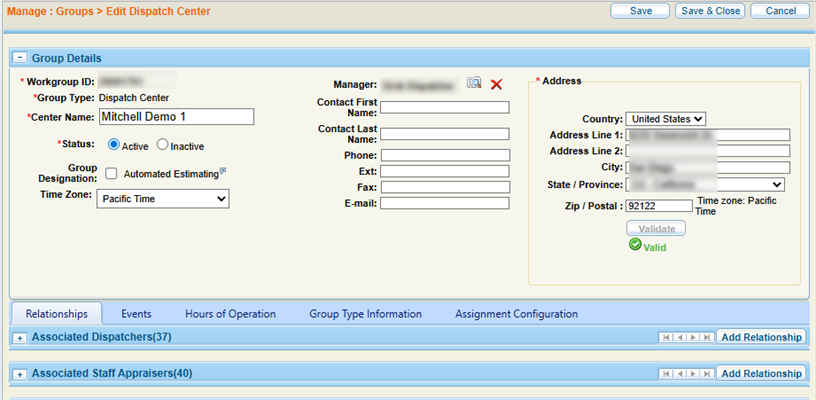
On the Edit Dispatch Center page, edit the group's information as necessary.
-
Select Save & Close.
Configure the Relationships Tab
Add Associated Relationships
-
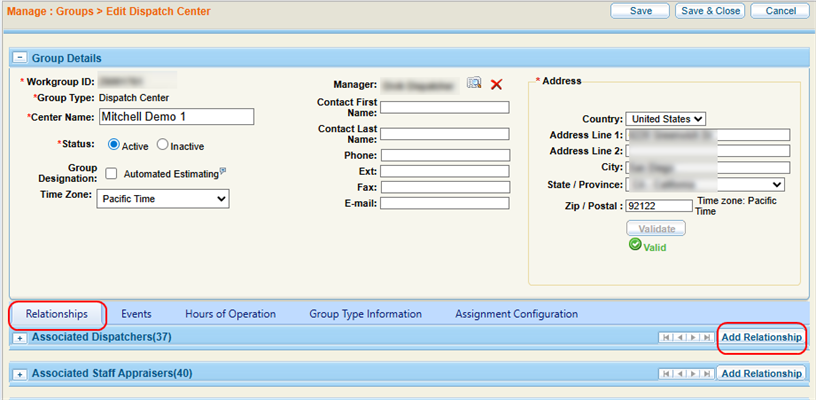
On the Edit Dispatch Center page, select the Relationships tab.
-
Select
 to expand the appropriate relationship section and view the group's relationships of that type.
 -
Select Add Relationship in the desired section.
-
In the Add Relationship window, select
 to Use Resource Lookup to Select a Resource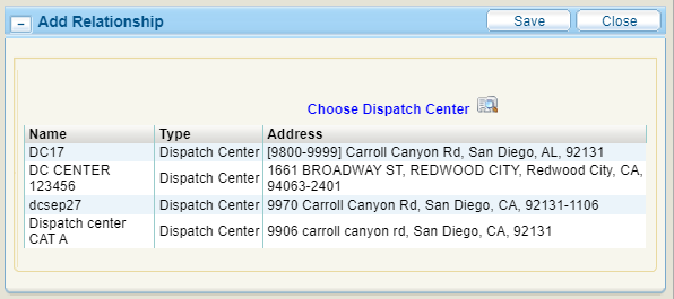
-
Select the desired resource.
-
Select Save.
Delete Associated Relationships
-
On the Edit Dispatch Center page, select the Relationships tab.
-
Select
to expand the appropriate relationship section and view the group's relationships of that type. -
Select the relationship you want to delete.

-
Select Delete Relationship.
Configure the Events Tab
Create an Event
Create an event to prevent assignments from being assigned to specific resources or groups during a set time or day, such as during holidays or team meetings.
-
On the Edit Dispatch Center page, select the Events tab.

-
Select Create Event.
-
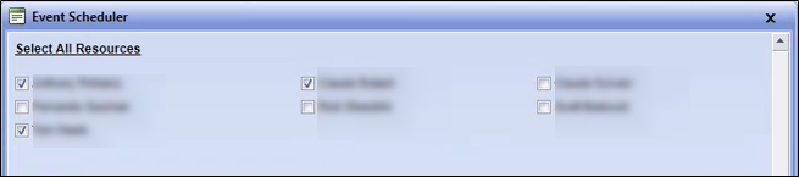
Select the check box(es) next to the resource(s) that will attend the event.
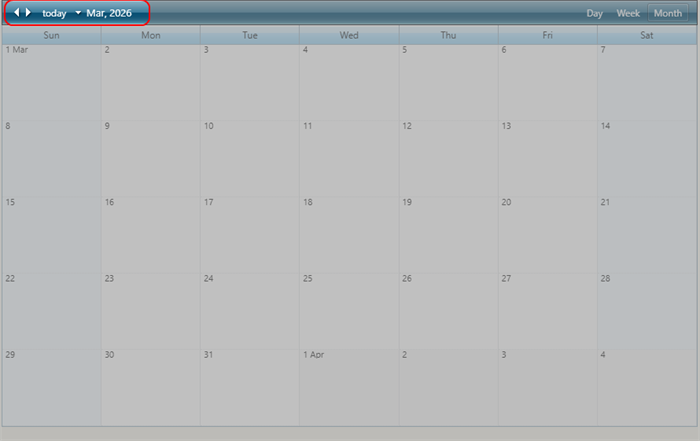
- Select the month arrow and use the forward and back arrows to display the month when the appointment occurs.
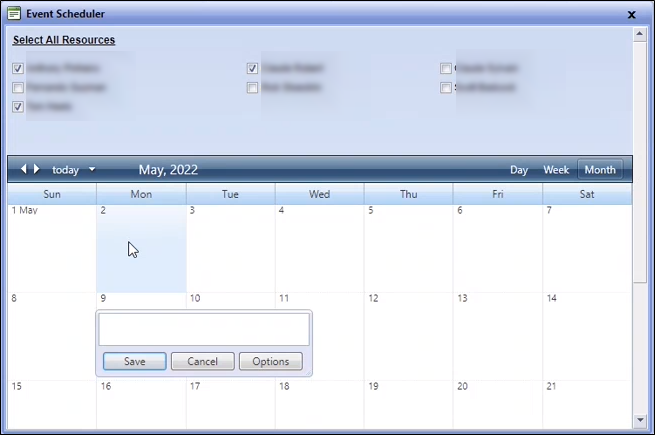
- Double-click the day of the month when the event occurs.
- Type a description of the event in the window.
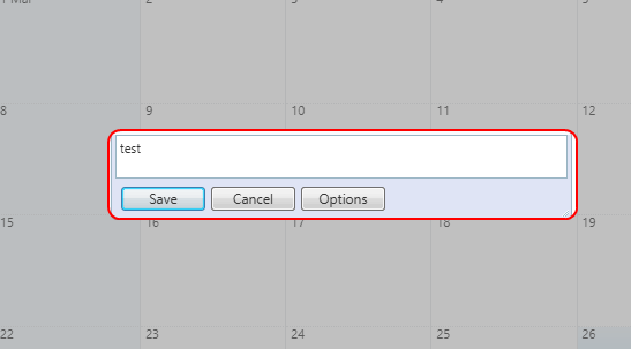
- Do one of the following:
- To set a full-day one-time appointment, select Save.
- Select Options and use the All day and Recurrence check boxes to select the options that accurately define the appointment(s).
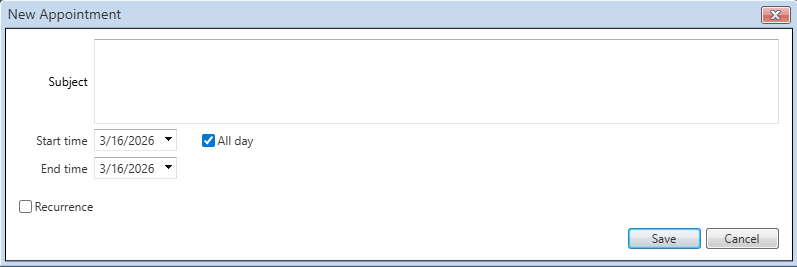
- Select Save to add the event(s) to the calendar.
-
Select Save and close the Event Scheduler window.
Edit an Event
-
On the Edit Dispatch Center page, select the Events tab.
-
Select
Scheduled Events to expand the section and view the scheduled events. -
Select the event you want to edit.
-
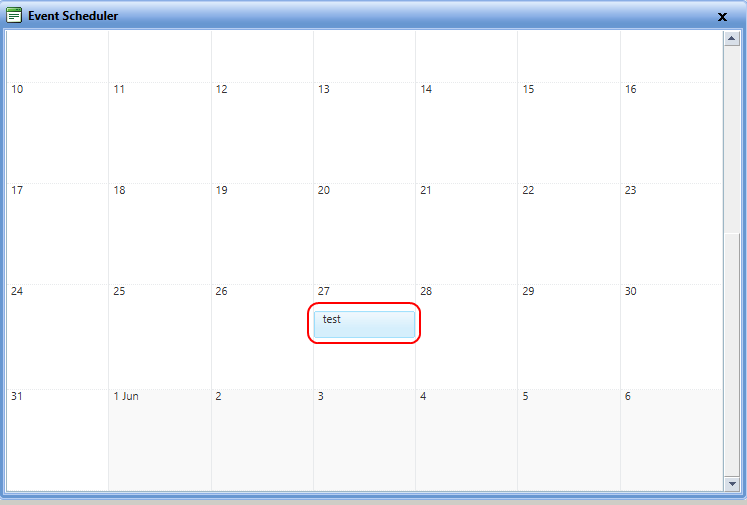
In the Event Scheduler window, select the event on the calendar.
-
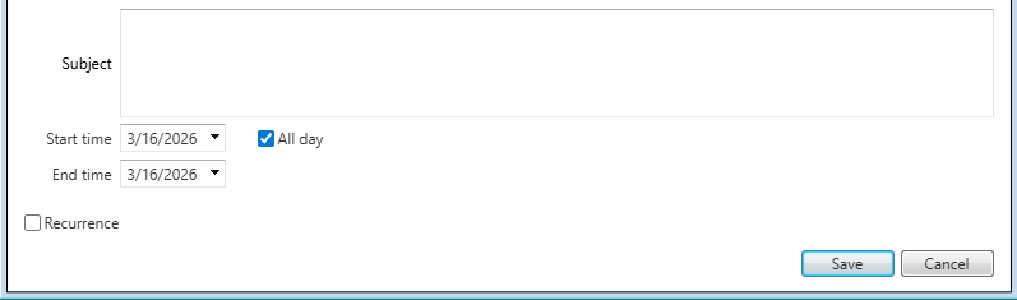
In the Edit Appointment window, edit the information as necessary.
-
Select Save and close the Event Scheduler window.
Configure the Hours of Operation Tab
-
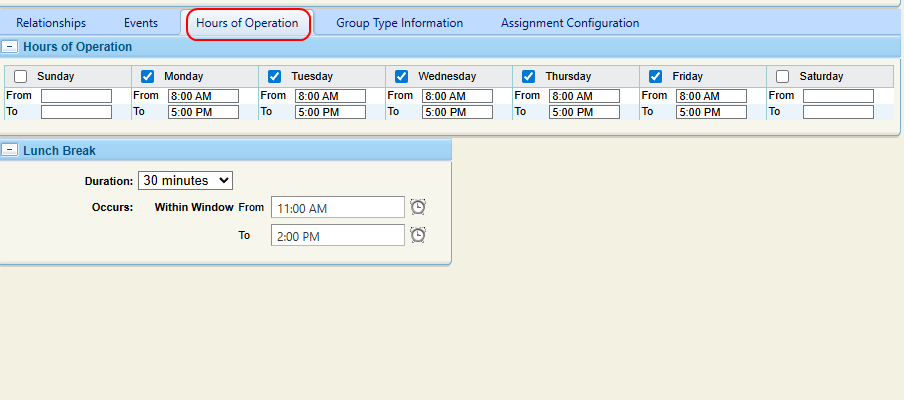
On the Edit Dispatch Center page, select the Hours of Operation tab.
-
Select the check boxes next to each day that is a work day.
-
Enter the appropriate work hours.
-
Select a Lunch Break Duration from the list, and optionally define a window for the lunch break.
-
Select Save to save the information and continue working. Select Save & Close to save and finish.
Configure the Group Type Information Tab
-
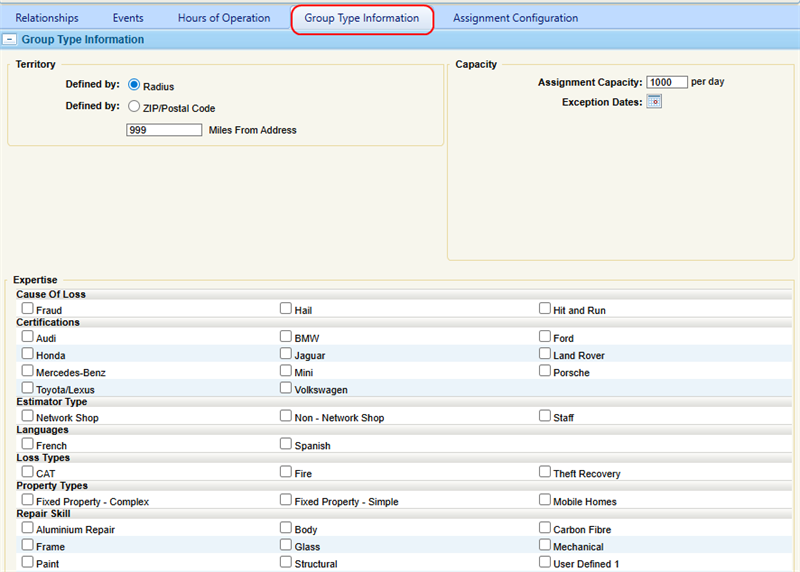
On the Edit Dispatch Center page, select the Group Type Information tab.
-
Edit the information as necessary.
-
Select Save to save the information and continue working. Select Save & Close to close the Resource Details page.
Configure the Assignment Configuration Tab
-
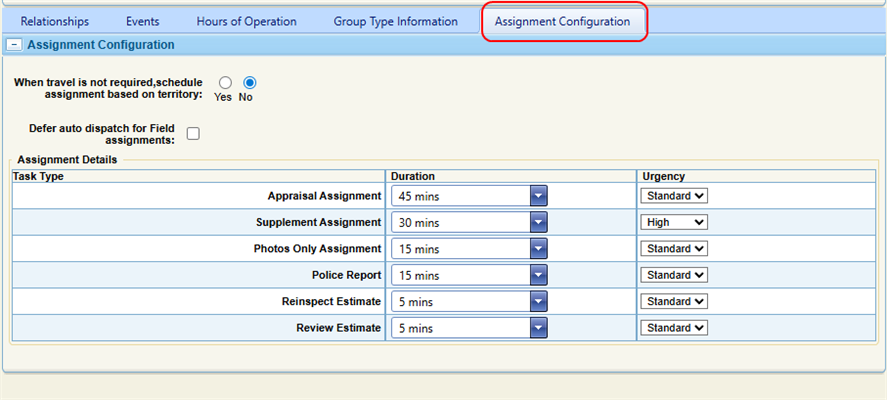
On the Edit Dispatch Center page, select the Assignment Configuration tab.
-
Edit the information as necessary.
-
Select Save to save the information and continue working. Select Save & Close to close the Resource Details page.
Configure Scenarios
Note: This feature is a configured setting and may not be available to all users.
Define scenarios to determine the assignment order of tasks. Any assignment that does not match a defined scenario will use the Duration and Urgency values specified in the Assignment Details section.
To create scenario(s):
-
Select the desired Task Type, MOI (Method of Inspection), Vehicle Type, Drivability, Customer Preference, Duration, Urgency, Task Priority, and Travel Required values from the lists.

-
Select + Add Scenarios to add another scenario.
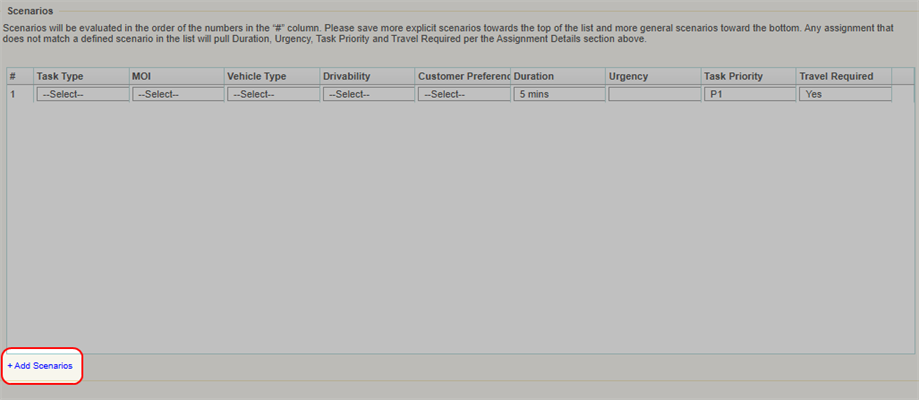
Note: Scenarios are evaluated sequentially according to the numbers in the # column. Assignments that match Scenario 1 will be assigned first, then assignments that match Scenario 2, etc.
-
Select Save when finished.
Reference
Dispatch Center Search Criteria
| Name | Definition |
|---|---|
| Group Type | Select Dispatch Center. |
| Name | The name of the dispatch center. |
| CAT |
Whether the dispatch center is able to manage emergency assignments. |
| Pull Group | Whether all resources associated with the center can pull both appraisal assignments and estimate review tasks. |
| Photo Based Estimating | Whether the center manages Photo Based Estimates. |
| Automated Estimating | Whether all resources associated with the center can receive auto-generated estimates. |
| Virtual Supplement | Whether the center is able to assign work to virtual appraisers for remote review, and route any work back to an in-person dispatch center if in-person handling is needed. |
| Task Queue | Whether the center centralizes tasks and distributes them based on hierarchy and zip code. |
| Reinspection | Whether the dispatch center manages reinspection tasks. |
| Review | Whether the dispatch center manages review tasks. |
| Travel Required | Whether travel is required or not for the dispatch center. |
| With all of the following Expertise | Select to expand the section and select the check box(es) next to any areas of expertise. |
| Search by Radius | Select a distance radius and enter an address to see resources within the distance radius. |
| Search by Territory | Enter an address to see resources within the territory. |
Group Details Section
| Name | Definition |
|---|---|
| Workgroup ID | The ID number for the group. |
| Group Type | Dispatch Center or Dispatch Team. |
| Center / Team Name | Enter a name for the group. |
| Status |
Dispatch Center only. Select Active or Inactive. The associated resources and their shifts become available for other uses but remain associated with the inactive site. |
| Dispatch Center | Dispatch Team only. Select an associated Dispatch Center for the team. |
| Group Category |
Select one of the following:
|
| Time Zone | The time zone where the group is located. |
Manager: Choose Resource  |
Assign a manager to the site. Do one of the following:
|
| Address | Enter the site address. |
| Validate | Select Validate to validate that the address entered is correct. |
Group Options (Dispatch Center)
| Name | Definition |
|---|---|
| CAT |
Catastrophe; marks the center as able to manage emergency assignments. |
| Pull Group | Enables all associated resources to pull both appraisal assignments and estimate review tasks. |
| Photo Based Estimating | Marks the center as able to manage Photo Based Estimates. |
| Automated Estimating | Enables all associated resources to receive auto-generated estimates. |
| Virtual Supplement | Marks the center as able to assign work to virtual appraisers for remote review, and route any work back to an in-person dispatch center if in-person handling is needed. |
| Task Queue | Marks the dispatch center as one that centralizes tasks and distributes them based on hierarchy and zip code. |
| Reinspection | Enables the dispatch center to manage reinspection tasks. |
| Review | Enables the dispatch center to manage review tasks. |
Group Type Information Tab
| Name | Definition |
|---|---|
| Territory |
Choose one of the following:
|
| Capacity | The number of daily assignments the center can handle. Select  to select any dates where this capacity does not apply. to select any dates where this capacity does not apply. |
| Expertise | Select any areas of expertise from the list, e.g. languages, certifications, loss types, etc. |
| System Approval Duration (Review Type only) |
Do the following:
|
| Risk Factor (Review Type only) | Select the check box to automatically assign review tasks to resources associated with the dispatch center based on their risk factor scores. Enter the desired risk factor score range in the fields. |
Assignment Configuration Tab
| Name | Definition |
|---|---|
| When travel is not required, schedule assignment based on territory: |
Select Yes or No. |
| Defer auto dispatch for Field assignments: | Select the check box to prevent assignments from being automatically dispatched when there is an update to the assignment. |
| Assignment Details | Select a Duration for each task type from the list, and select an Urgency for each type from the list. |
Related topics
