Generate and View OPUS ADAS Reports
Use OPUS ADAS (Advance Driver Assistance Systems) Map reports to quickly identify ADAS related services and calibrations needed post repair. The report includes:
-
Scanning Requirements
-
ADAS Related Services to be Performed
-
ADAS Calibrations
-
Identified ADAS Systems
OPUS ADAS reports are initiated once a repair line is added to an estimate on an existing job in Mitchell Connect.
You can review, print, or download these reports directly from Mitchell Diagnostics in Mitchell Connect.
Note: Access to OPUS ADAS reports require additional licensing. Contact your Account Manager for details.
Tip: OPUS ADAS reports are automatically updated if the estimate is updated. After you update an estimate, you may want to view the updated report to check for any changes to the recommended calibrations on the report.
Note: OPUS ADAS reports are for informational purposes only and should not be considered as a replacement for Original Equipment Manufacturers (OEM) diagnostic, repair or calibration recommendations and procedures, as well as a detailed visual inspection of a vehicle.
How to
 View OPUS ADAS Reports
OPUS ADAS Reports are available once a repair line is added to an estimate on an existing job in Mitchell Connect. Tip: OPUS ADAS reports are automatically updated if the estimate is updated. After you update an estimate, you may want to view the updated report to check for any changes to the recommended calibrations on the report.
-
On the Job Overview page, select Predictive ADAS on the Diagnostics card.

-
On the Diagnostics page, select Predictive ADAS if not already selected.

Note: An error message appears in the Predictive ADAS tab on the Diagnostics page if there is insufficient information to generate the report or if the system is experiencing technical difficulties.
Download or Print OPUS ADAS Report
-
On the Job Overview page, select the Diagnostics card.
-
On the Diagnostics Reports page, select the Predictive ADAS tab. The ADAS summary reports appears.

-
Do any of the following:
-
Select Download. The scan PDF appears in your download folder.
-
Select Print. Follow the prompts to print or download your scan.
Add OPUS ADAS Report to Insurance Upload
Include the OPUS ADAS Report with Send to Insurance feature. This option is available for assignments and not walk-in jobs created at the shop.
-
On the Job Overview page, select the Diagnostics card.
-
On the Diagnostics Reports page, select the Predictive ADAS tab.
-
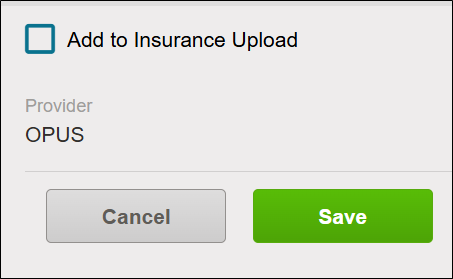
Click the Add to Insurance Upload check box, and then click Save.
-
Click Send on the Job Overview page when you are ready to send all of your attachments and estimates on the job to the insurance company.
OPUS ADAS Report History
The OPUS ADAS Report History feature provides easy access to previously uploaded Predictive ADAS reports. When a report has been uploaded to the insurance company, users can access a comprehensive history of these uploads.
You can view, preview, download, and print historical reports directly from the Scan Manager page, enhancing transparency and streamlining document management.
Report history is limited to the specific job.
-
On the Job Overview page for a job with a completed ADAS Report, select the Diagnostics card.
-
Select the ADAS Report tab.
-
Select the History link in the right pane at the bottom of the page.

-
Do any of the following in the Select Predictive ADAS Report window:
-
Download a report as a PDF: Select the report, and then select Download. Check your downloads folder for the PDF.
-
Print the report: Select the report, and then select Print. Follow the prompts in the Print window to print the report.
-
View the report: Select the report, and then select the preview button
 . Review the report. You can also download and print the report.
Add Recommended ADAS Calibrations Directly to Estimate
Add recommended calibrations to your estimates directly in Mitchell Cloud Estimating. This feature streamlines your workflow by eliminating the need to switch between different pages, saving you time during the estimation process. The Recommended Operations section displays selected calibrations while providing ADAS Report Details in the estimate editor.
Note: OPUS recommendations are not available for all vehicles or for any vehicles with a model year older than 2013. OPUS reports are currently only available in English.
-
Add repair lines to the estimate.
-
Select + Recommended Operations on the Estimate page toolbar. Recommendations appear at the bottom of the repair lines in a new section labeled Recommended Operations.


-
(Optional) Review the full ADAS report from the estimate: Select the arrow next to + Recommended Operations and then select ADAS Report. The report opens in a new window.
-
(Optional) Modify the labor type, labor units, and price fields, or add explanation lines or labor adjustments. Select a Recommended Operations line and do any of the following:

-
Review ADAS Report Details: Select the information icon next to ADAS Report Details. A window shows you the recommendation.

Note: The Report Details appear in Mitchell Cloud Estimating only and are do not appear on the PDF estimate.
-
Apply modifications: Modify the labor type, labor units and price fields, as needed. Select Done when complete.

-
Add Labor Betterment: Select +Markup, adjustment, or explanation, select Add Labor Betterment, and then enter your adjustments in the percent or dollar amount fields and select the check box next to Include Tax to add tax. Select Done when complete.

-
Add Explanation lines for your adjustments: Select +Markup, adjustment, or explanation, select Add Explanation, and enter your explanation. Select Done when complete.

-
(Optional) Delete any recommended line: Select the line, and then select Delete.
-
Complete and commit the estimate as needed.
Launch ADAS Report from within Mitchell Cloud Estimating for MSOs and IAs
Select MSO's and Independent Appraisers can reference OPUS ADAS systems while writing estimates in Mitchell Cloud Estimating.
Note: This features is only available to select MSO's and Independent Appraisers. It is not available to all users.
-
Add an estimate line on the Estimate and Split View pages.
-
Select ADAS Report.

-
Review the information in the Diagnostics Report page in a new window while completing the estimate.

Reference
OPUS ADAS Report Descriptions
Note: Sections of the OPUS ADAS report may include links to PDFs and videos outside of Mitchell Diagnostics. View the report in the Print window or download the report to access these links.
| Field/Section | Description |
|---|---|
| RO Number | Repair Order number. |
| Inspection Number | Report number created by OPUS. |
| Year | Vehicle year. |
| Make | Vehicle make. |
| Model | Vehicle model. |
| VIN | Vehicle Identification Number. |
| Insurance | Insurance company. |
| Estimator | Name of the estimator. |
| Scanning Requirements | Pre and Post scan requirements recommended by the OEM. |
| Identified ADAS Related Services to be Performed | List of Identified Services that Should be Performed on this Vehicle. |
| Calibrations | Required service and calibration details and supporting OEM recommendations. Reports may include additional related OEM, ADAS, Calibration, I-CAR and other links to PDF’s and videos. |
| The Fine Print | Disclaimer. |
Related topics