Account Profiles
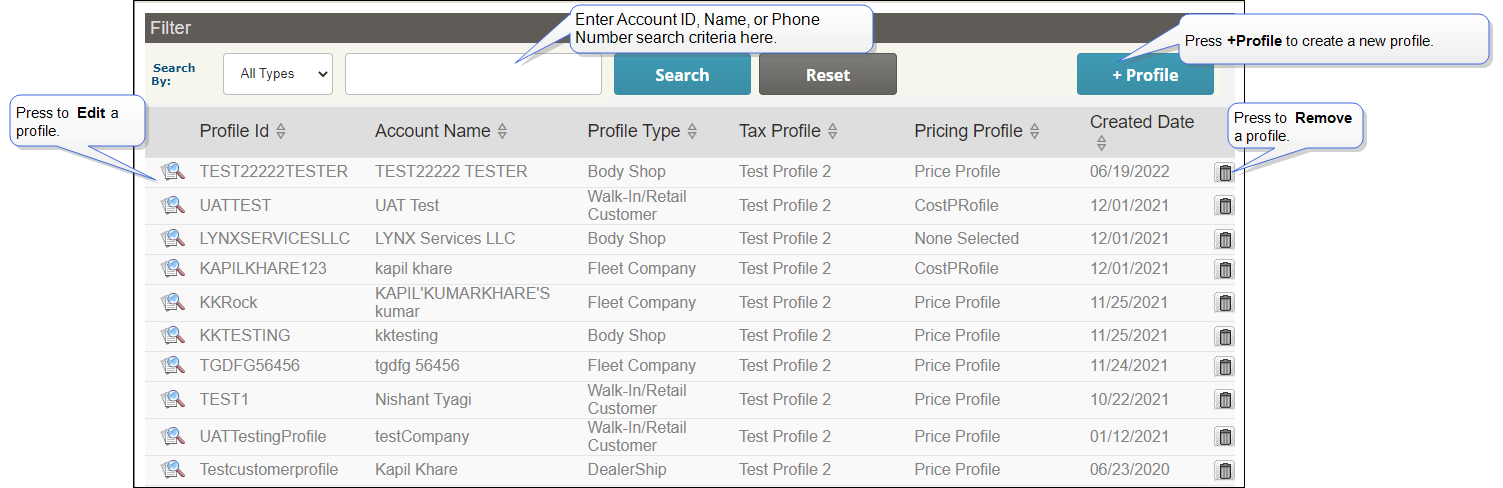
Use Account Profiles to search, add, edit, or remove Account and company Account profiles.
How to
 Search profiles
- Press System, Account Profiles to open the Account Profiles page.
- Enter Account ID or Company/Account Name search criteria in the Search by box and press Search.
Add a new profile
-
Press System, Account Profiles to open the Account Profiles page.
-
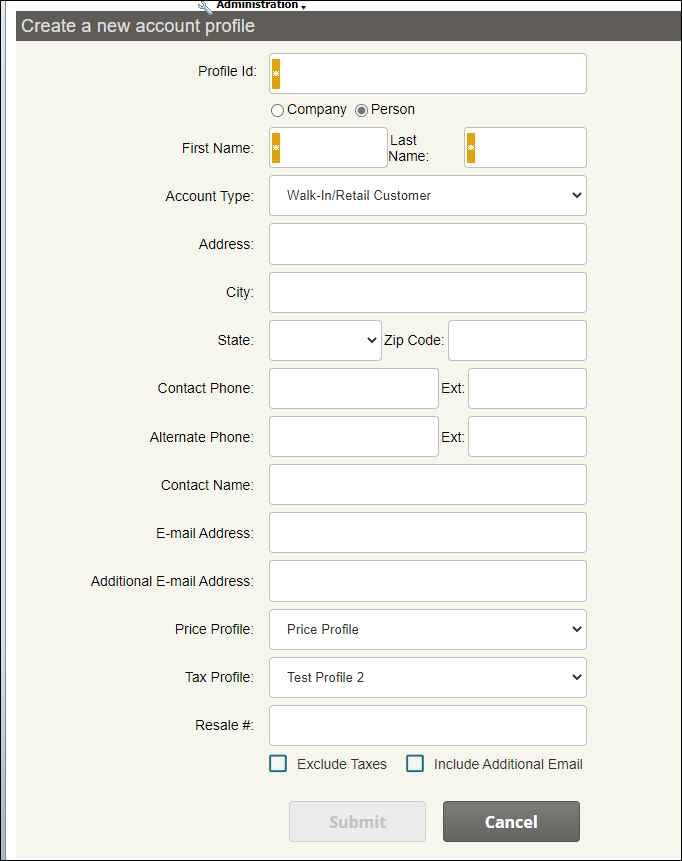
Press Add New Account/Company to open the Create a new Account profile page.
-
Enter an Account ID and the name of the Company or Person associated with this profile.
Note: Fields marked with an asterisk (*) are required fields.
- Provide any additional profile information required by this profile.
- Press Submit.
Edit a profile
-
Press System, Account Profiles to open the Account Profiles page.
-
Press the magnifying glass icon
 next to the profile you want to edit.
Add an Additional E-mail Address
-
Press System, Account Profiles to open the Account Profiles page.
-
Press the magnifying glass icon
next to the profile you want to edit to add an additional email address. -
In the Additional E-mail Address field, add the additional email address.
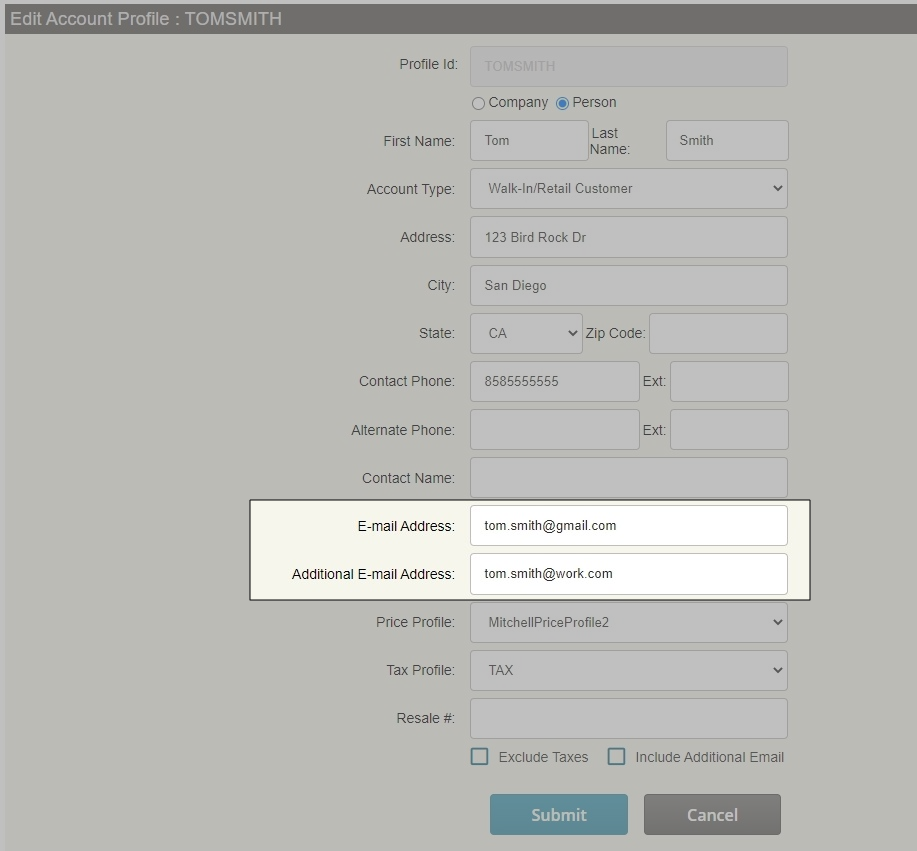
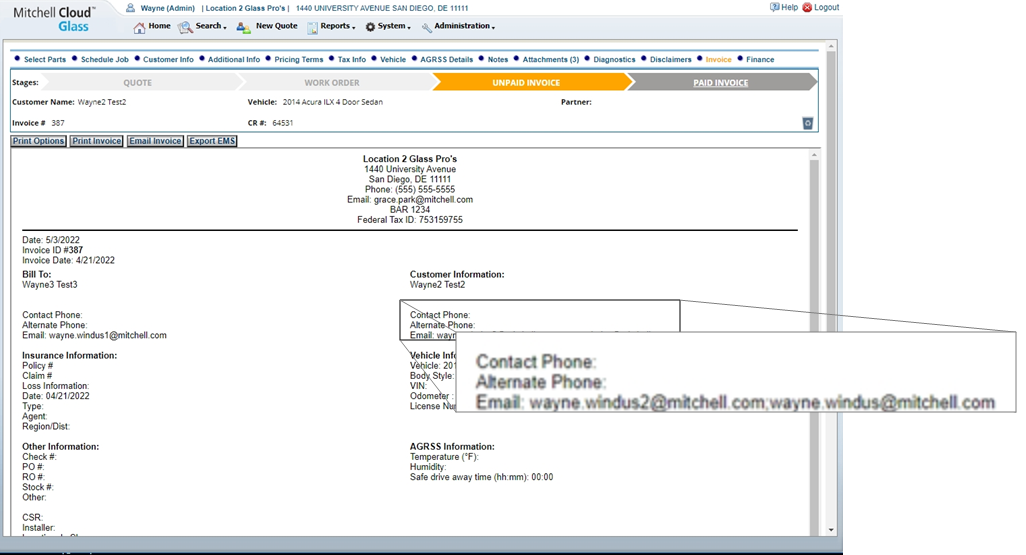
NOTE: Both email addresses will show on the invoice. If you email the invoice, both email recipients receive a copy of the invoice in PDF format.
Remove a profile
- Press System, Price Profiles to open the Account Profiles page.
- Press the trashcan icon
 next to the profile you want to remove.
 - When prompted if you want to remove this profile, press Yes if you want to remove the profile.
Add Attachments
-
Press System, Account Profiles to open the Account Profiles page.
-
On the Account Profile page, select the Edit Profile icon next to the Profile Id column. The Edit Account Profile page opens.
-
Locate and select the Attachments (#) button.
The Edit Account Profile page displays in a table the uploaded attachments for this account profile.
-
Select Upload Attachments. A popup window displays. Choose your files and add an optional Note then select Upload.