miTrends
miTrends is a self-serve analytics platform designed for business users to create reports on-the-fly, filter results, and investigate trends. Core features include the following:
-
Create reports using a streamlined wizard
-
Navigate reports using an enhanced cross-tab experience, including an ability to set targets and compare individual results against a company
-
Click on any cross-tab number to instantly produce a trend view
If you would like more details on this product, please reach out to your client services representative.
How to
 Copy a report
-
Log in to WorkCenter.
-
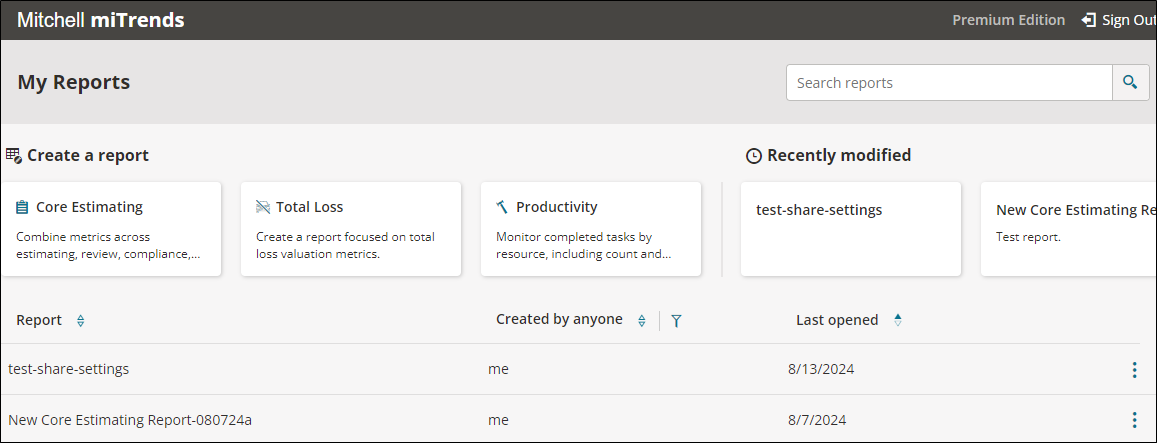
From the Reports menu, select miTrends.
-
Select the options menu
 next to the report you want to copy.
 -
Select Create a copy to open the Create a copy prompt.
-
Enter a new name for the copied report, and then select Create copy to copy and rename the report.
Rename a report
-
Log in to WorkCenter.
-
From the Reports menu, select miTrends.
-
Select the options menu
next to the report you want to rename. -
Select Rename to open the Rename prompt.
-
Enter a new name for the report, and then select Save to save and rename the report.
Delete a report
-
Log in to WorkCenter.
-
From the Reports menu, select miTrends.
-
Select the options menu
next to the report you want to delete. -
Select Delete to open the Delete prompt.
-
Select Delete to delete the report.
Modify or Delete a Saved Custom Hierarchy
-
Log in to WorkCenter.
-
From the Reports menu, select miTrends.
-
Under the Create a Report section, select the Core Estimating Card to begin building a New Core Estimating Report.
-
Select the metrics you want in your report and select Next to proceed to the Hierarchy page.
-
From the Hierarchy list, select any hierarchy other than the default option of Standard.
-
Select the Edit custom hierarchy link.
Note: From the Edit Custom Hierarchy page, you can modify and save or delete the custom hierarchy. You can also save the modified hierarchy or save it as a new custom hierarchy.
IMPORTANT: If you want to delete the hierarchy, a pop up displays reports that are using the hierarchy. It will not let you delete the hierarchy if it is used in another report. You must delete the reports using the hierarchy before you can delete the hierarchy.
-
Select Edit next to an hierarchy Component or Edit Hierarchy to make changes.
-
Make any required changes to the custom hierarchy, and the select Update to save your changes and update the hierarchy.
Add a Sub-Row Option to a Cross-tab Report
-
Log in to WorkCenter.
-
From the Reports menu, select miTrends.
-
Under the Create a Report section, select the Core Estimating Card to begin building a New Core Estimating Report.
-
Select the metrics you want in your report and select Next to proceed to the Hierarchy page.
-
From the Hierarchy list, select a hierarchy or accept the default option of Standard.
-
Select Next to proceed to Layout.
-
On the Layout page, select an option from the optional Sub Row menu.
Your selection displays in the Crosstab Preview layout.
-
After completing your layout, select Generate Report.
The report displays with the values for your selected row and sub-rows.
Add a sub-row option to a cross tab report
-
Log in to WorkCenter.
-
From the Reports menu, select miTrends.
-
Under the Create a Report section, select the Core Estimating Card to begin building a New Core Estimating Report.
-
Select the metrics you want in your report and select Next to proceed to the Hierarchy page.
-
From the Hierarchy list, select a hierarchy or accept the default option of Standard.
-
Select Next to proceed to Layout.
-
On the Layout page, select an option from the optional Sub Row menu.
Your selection displays in the Crosstab Preview layout.
-
After completing your layout, select Generate Report.
The report displays with the values for your selected row and sub-rows.
