Chat with Support
lUse the chat feature to obtain technical support with a live agent. Available hours are 5:00 AM to 5:00 PM Pacific Standard Time.
If the service is not available, the chat icon shows Offline  .
.
Note: Some insurance companies may have this feature disabled for Staff users.
How to
 Start Chat with Support
-
Select
 at the bottom of the page.
 -
In the Chat window, enter your email, phone number, and the subject of your chat.
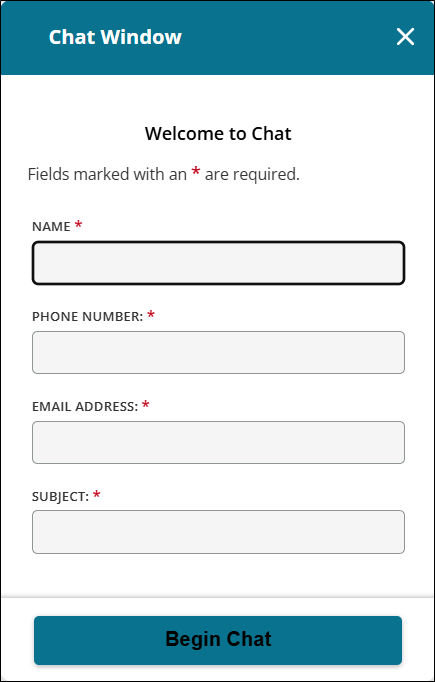
Note: The Chat window doesn't appear if a live agent isn't available.
-
Select Begin Chat.
-
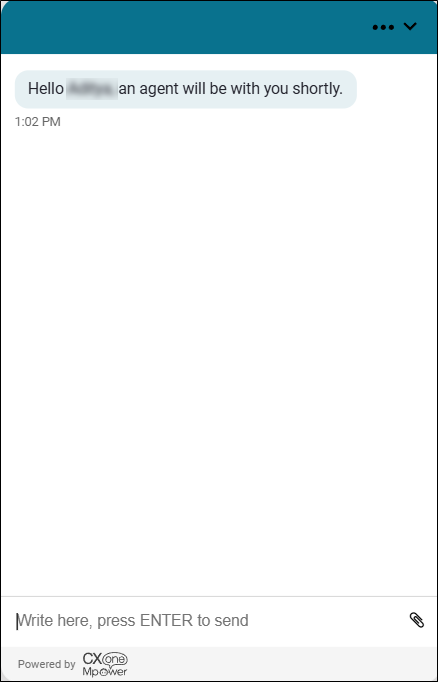
Enter your text in the Write here, press ENTER to send box and press Enter to send your message.
-
Select the down arrow on the Chat window to collapse the window.
-
To end the chat, select
 on the Chat window, and then select End chat.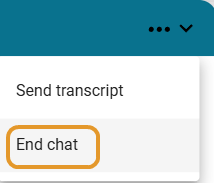
-
Select End chat at the prompt.
-
Select the down arrow to close the Chat window.
Send Chat Transcript
Send the transcript of your chat with support to a specified email address. You can keep the transcript as a record of your conversation.
-
Select
on the Chat window, and then select Send transcript.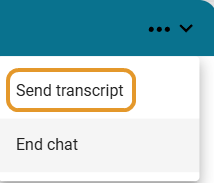
-
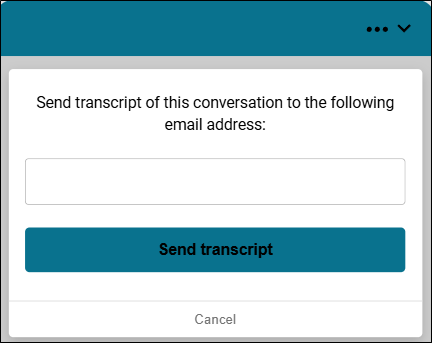
Enter the email address in the email address box, and then select Send Transcript.
-
Select Done to when complete.
-
To end the chat, select
on the Chat window, and then select End chat.
-
Select End Chat at the prompt.
-
Select the down arrow to close the Chat window.
Reposition Support Chat Icon
The Support Chat icon can be moved to any location on the page for better visibility and to prevent the icon from obstructing anything on the page.
The Chat icon remains in the position for your entire session of Mitchell Connect. When you sign out and sign back in, the Support Chat icon remains in the place you moved it.
-
Hover over the Drag Handle icon
 next to the Chat icon.
 -
The Move cursor
 appears. Use the Move cursor to move the Chat icon to another location on the page.