Enter Vehicle Information for TruckMax and Specialty Vehicles
This page allows you to access and configure additional information about the vehicle and its damage for a new or existing job in Mitchell Connect. Begin with decoding the Vehicle Identification Number (VIN) by scanning it or typing it in the VIN field. If the VIN is unknown, select the Manual Select checkbox and fill in the necessary fields (i.e., Type, Year, Make, Model, etc). Once the VIN is populated, continue down the page and fill in the necessary Details, Color, Equipment, and Damage categories as desired.
When using the VIN field decode utility, error messages display when the vehicle VIN cannot be verified. Context-specific error messages include:
-
VIN is invalid – A digit in the VIN is invalid.
-
Not licensed to decode <category> – Check Mitchell Cloud Estimating licensing for vehicle categories (e.g., motorcycles, RV's, etc).
-
Not licensed to decode <make> – Check Mitchell Cloud Estimating licensing for vehicle make types (e.g., Jeep, Audi, etc).
-
VIN unable to decode for fleet vehicles, please use manual select below to continue – Fleet vehicle data is not authored for Mitchell Cloud Estimating and cannot decode VIN as a result. Manually decode a similar base model to continue creating the estimate.
How to
 Enter Vehicle Information for Commercial Truck Estimates with Mitchell Cloud Estimating TruckMax
-
Create a new job in Mitchell Connect (if a job or assignment doesn't already exist).
-
On the Vehicle page, do one of the following:
-
Decode a vehicle VIN: Scan the VIN or type the VIN.
-
Manually select the vehicle: Click the Manual Select check box, and then click Type. Select the vehicle type.
-
-
Select the points of impact on the Points of Impact diagram. Points of Impact diagrams are available for heavy duty truck, trailer, and medium duty truck.
Note for TruckMax Commercial Truck Vehicle Selection for RepairCenter Users: RepairCenter users should avoid changing the Vehicle Type of an assigned estimate after the vehicle information is completed in Mitchell Cloud Estimating. If you change the Vehicle Type to Truck in RepairCenter, the original estimate is deleted from RepairCenter. To resolve this issue, re-import the original estimate using RepairCenter.
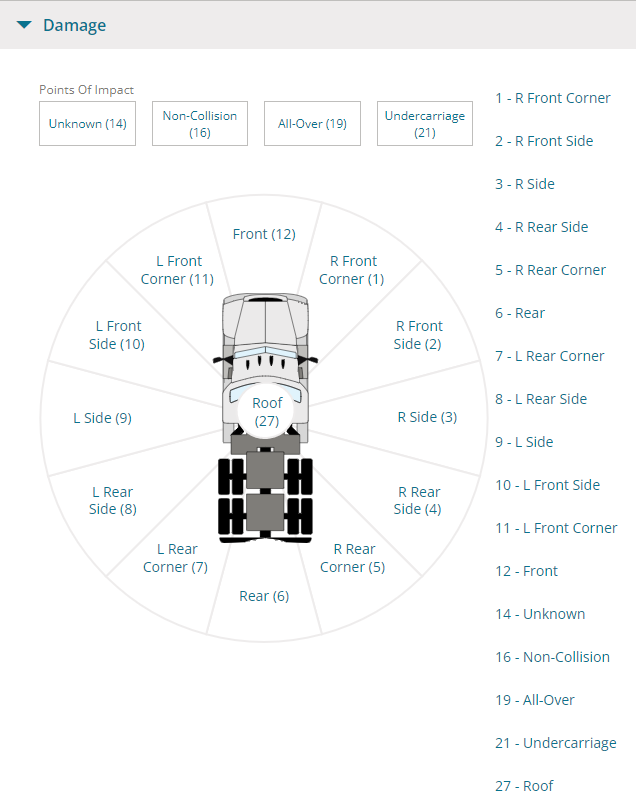
Note: Since vehicle configurations and options are nearly infinite in the market for commercial trucks, this feature hides Vehicle Options and Equipment information. The following message appears instead: No data is available for the current selection.
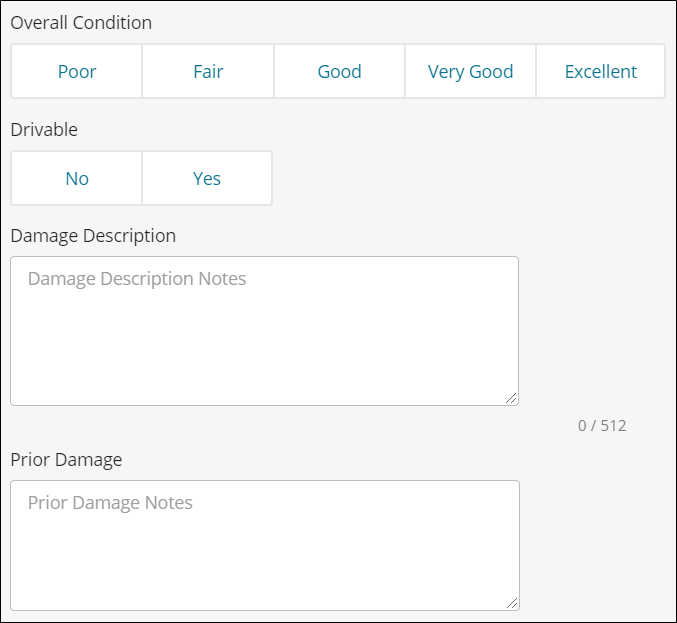
Note: If the Points of Impact diagram is not available, enter a description in the Damage Description box and describe any prior damage in the Prior Damage box.
-
Finish creating the job and click Write Estimate on the Job Overview page.
Note: After market parts are available directly from the database as you write the estimate. You do not need to use the Compare Alternate Parts feature.
See next
Reference