Assign Users to a Parts Profile
You can assign users to a Parts Profile.
How to
 Assign Users to a Profile
On the Assign User tab, use the following methods to find users and assign them to the profile.
Find Users by Searching
-
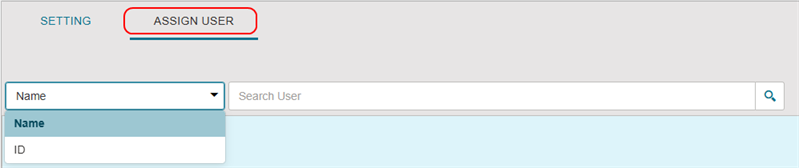
Select the Assign User tab to view the users you can assign to the profile.
-
Select Name or ID from the list and enter the appropriate information.
-
Select
 .
. -
In the User column, select the check box next to the desired user.
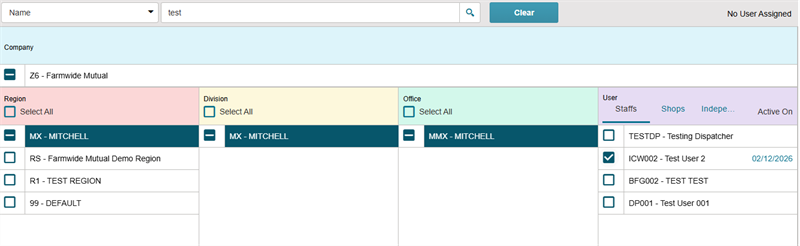
Note: Select Clear to clear search results and search again.
-
Select Save to complete your profile and user selections.
Find Users by Filtering
-
Select the Assign User tab to view the users you can assign to the profile.
-
Select a Region name to filter for only users in that region.
-
Select a Division name to filter for only users in that division.
-
Select an Office to filter for only users in that office.

-
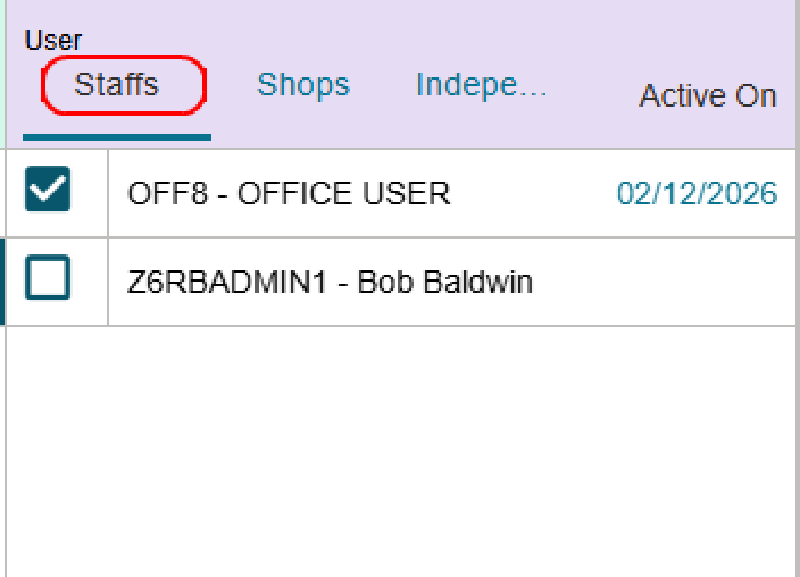
In the users column, select the appropriate tab (Staffs, Shops, or Independent Appraisers) for the user type you want to view.
-
Select the check box next to the desired user(s).
-
Select Save to complete your profile and user selections.
Select All Users
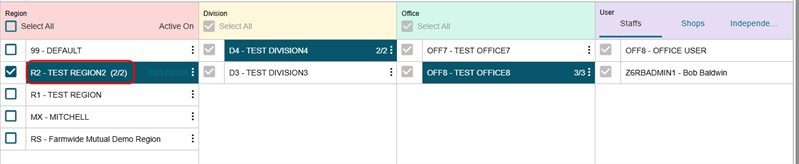
You can select all users in a specific location to add them all to the profile.
-
Select the Assign User tab to view the users you can assign to the profile.
-
Do one of the following:
-
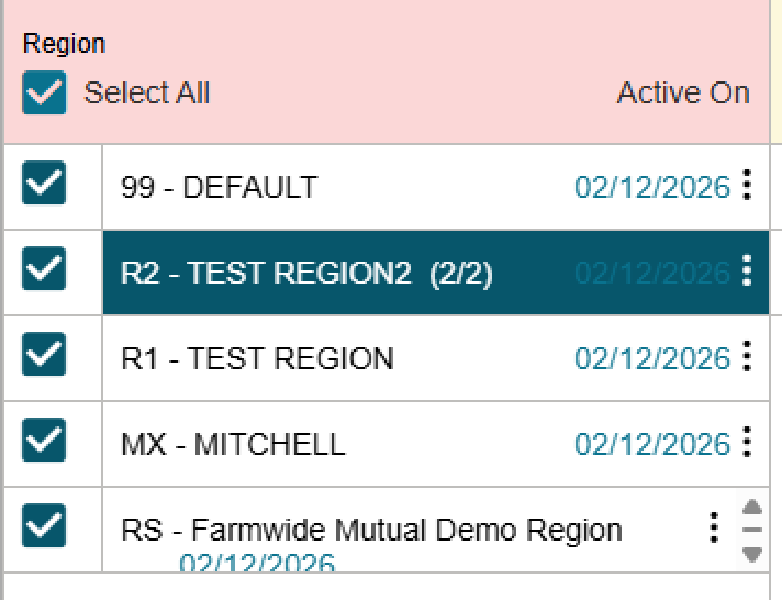
To select all users in a given category (e.g. all users in all regions), select the Select All check box below the column name.
-
To select all users in a specific location (e.g. all users in a given region), select the check box next to the location name.
-
Select Save to complete your profile and user selections.
