Update Annotation Report Change Requests
After an estimate or supplement is sent to the insurance company for review, the returning change requests from the reviewer(s) display in the Annotation Change Request window. All change requests are accepted or rejected by the appraiser in Mitchell Cloud Estimating then sent back along with any comments to the insurance company for their reporting software.
Note: The Annotation Report only records the actions and comments of the most recent version of the change request.
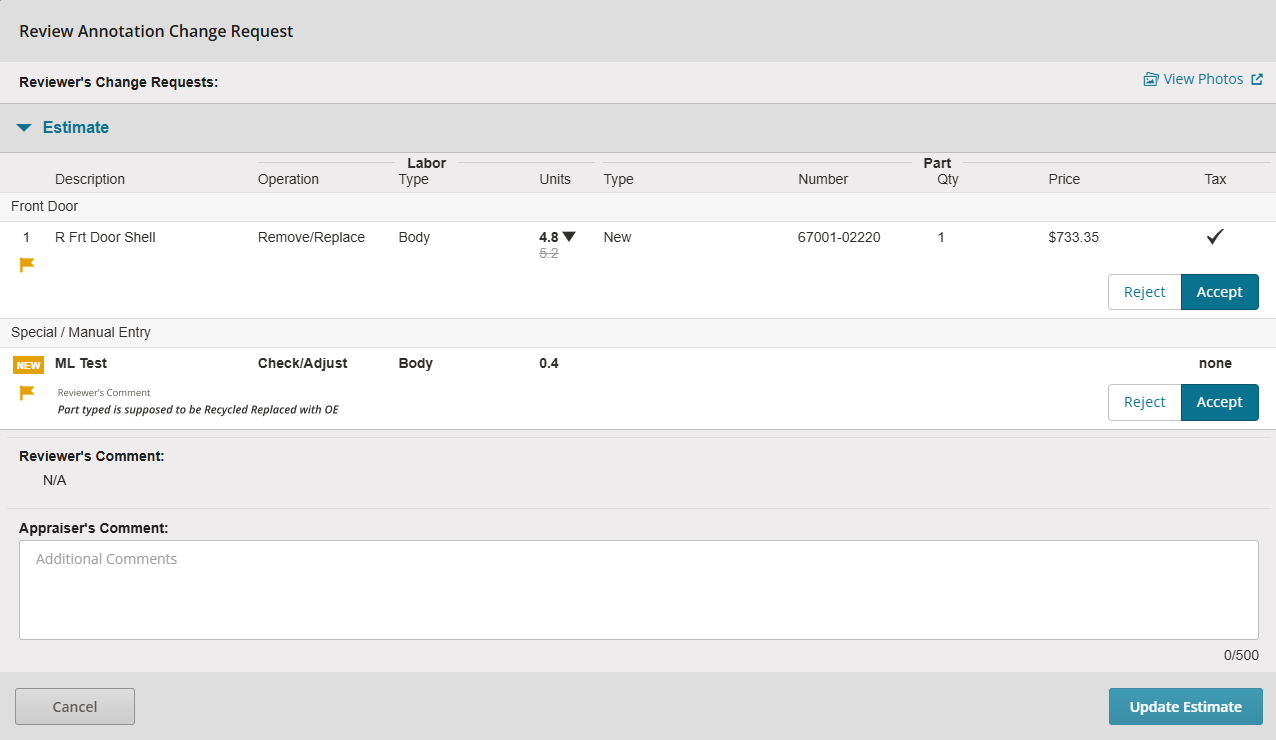
Tip: When a change request is marked as a priority, a yellow flag icon displays at the row level.
How to
 View Annotation Report Window from Mitchell Connect
-
Log into Mitchell Connect and open the desired supplement assignment that has reviewer change requests. The Job Overview page opens.
-
On the Estimate card, select View or Supplement.
-
Mitchell Cloud Estimating opens and automatically loads the Review Annotation Change Request window.
Note: Selecting Cancel reverts you back to the Job Overview page. The Estimate cannot be accessed until the change requests are either accepted or rejected.
View Annotation Report Summary from Mitchell Cloud Estimating
-
Open desired supplement assignment that has reviewer change requests.
-
On the Estimate tab, click on Annotation Report. The Summary Annotation Report opens.
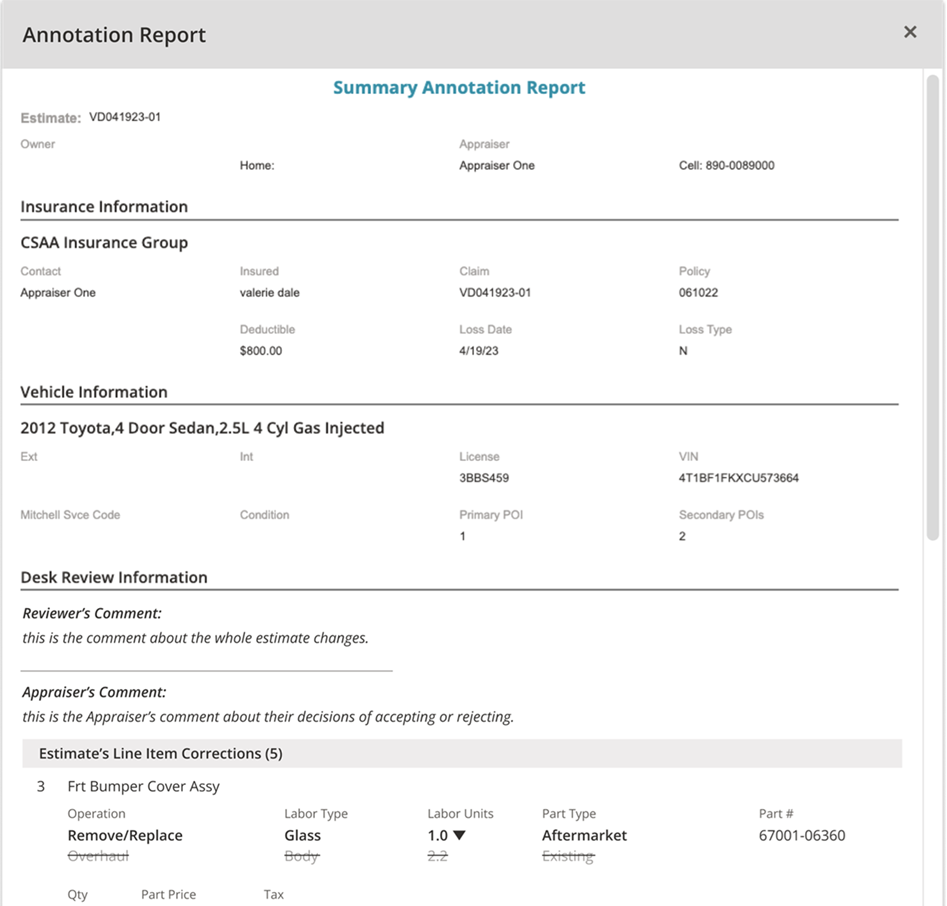
All actions and comments from both the insurance reviewers and shop appraisers are recorded along with their comments.
Accept or Reject Change Requests
-
Open the supplement assignment to the Review Annotation Change Request window.
-
Review the normal and high priority changes for the assignment, then either Accept or Reject the change from the insurance company reviewer.
-
Under the Profile Setting, review any changes to Labor Rate, then either Accept or Reject the changes.
-
Review the Reviewer's Comment section towards the bottom of the page.
-
Make any additional comments for the Reviewer in the Appraiser's Comment text box.
-
The bottom of the Annotation Report displays Profile Setting Corrections, giving you the Labor Rate changes and the update to the Totals for labor, parts, grand total, adjustments, and net total.
-
Select Update Estimate to save your changes.
All changes and comments are sent to the insurance company for their review.
Open the Annotations Report from the Job Overview Page
A banner appears above the Estimate card stating Change Requested.
-
On the Job Overview page, select
 .
. -
Select Annotation Reports. The Summary Annotation Report opens. Use the drop-down to view current or past versions.
-
Select Print or Close.
View Photos and Attachments
-
Open the supplement assignment to the Review Annotation Change Request window.
-
Select View Photos.
A new window displays and loads the Attachments page inside Mitchell Connect.